Download do•doc!
To use do•doc, download the application to your computer or install it online on a dedicated server.
You can try the tool online before installing it here.
Local application
Install do•doc on your computer to run your own instance, without sending your data to a remote server.
The application works offline and can connect several devices on the same Wi‑Fi network. You can then export your projects and publish them online, even after working entirely locally.

Installation tutorial
Linux
Download the .AppImage file that matches your system.
Make the file executable: right-click the file > “Properties” > “Permissions”, then check “Allow executing file as program”.
From the command line: chmod +x dodoc-*.AppImage
Double-click the file to launch do•doc.
If nothing happens, install the libfuse2 package (for example sudo apt install libfuse2), then launch the file again.
Installation tutorial
Mac Intel
Download the .dmg file that matches your Mac (Intel or Apple Silicon).
Open the .dmg file, then drag the do•doc icon into the “Applications” folder.
Launch do•doc from the “Applications” folder.
If macOS prevents it from opening, go to “System Settings” > “Privacy & Security” and click “Open Anyway”.
Installation tutorial
Windows
Download the matching application file.
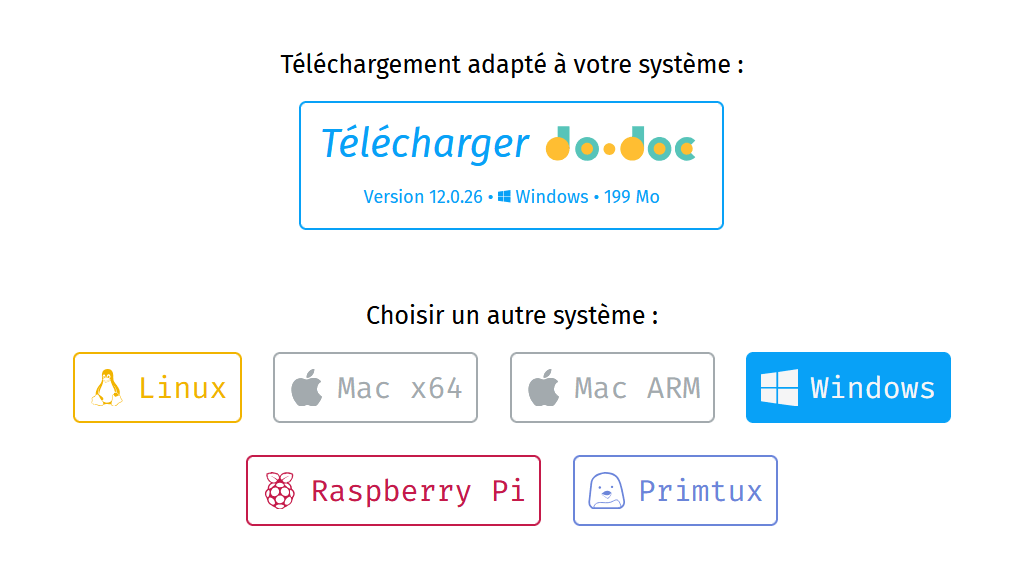
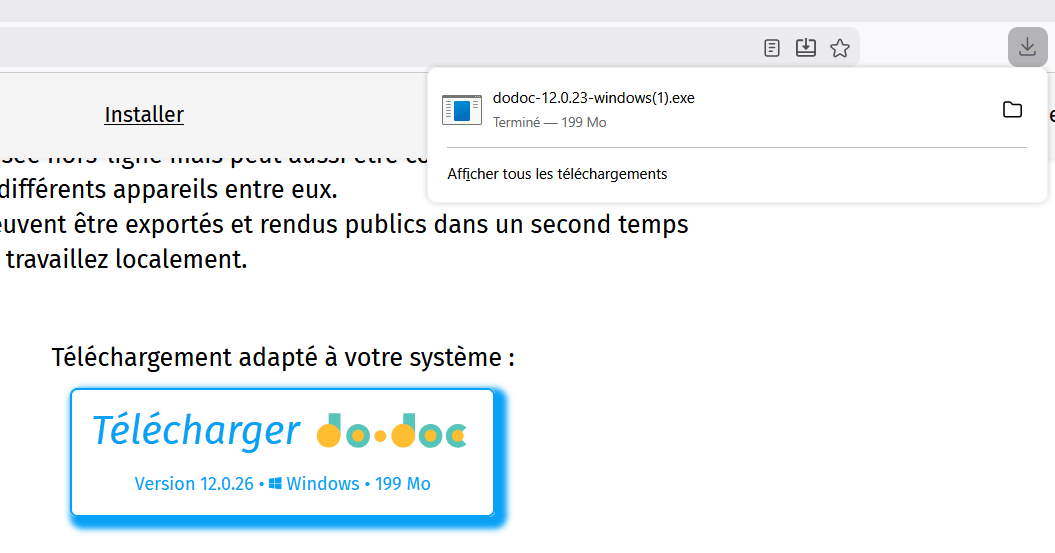
Open the file you just downloaded to run it.
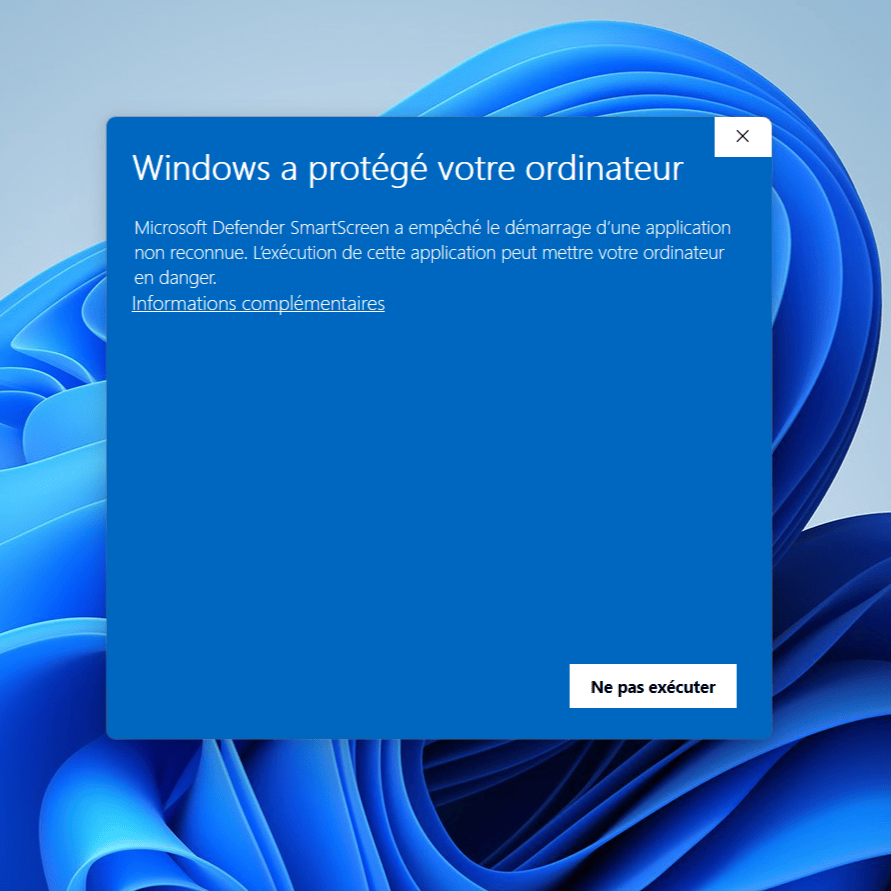
Windows may block the installation at this point. Click “More info”.
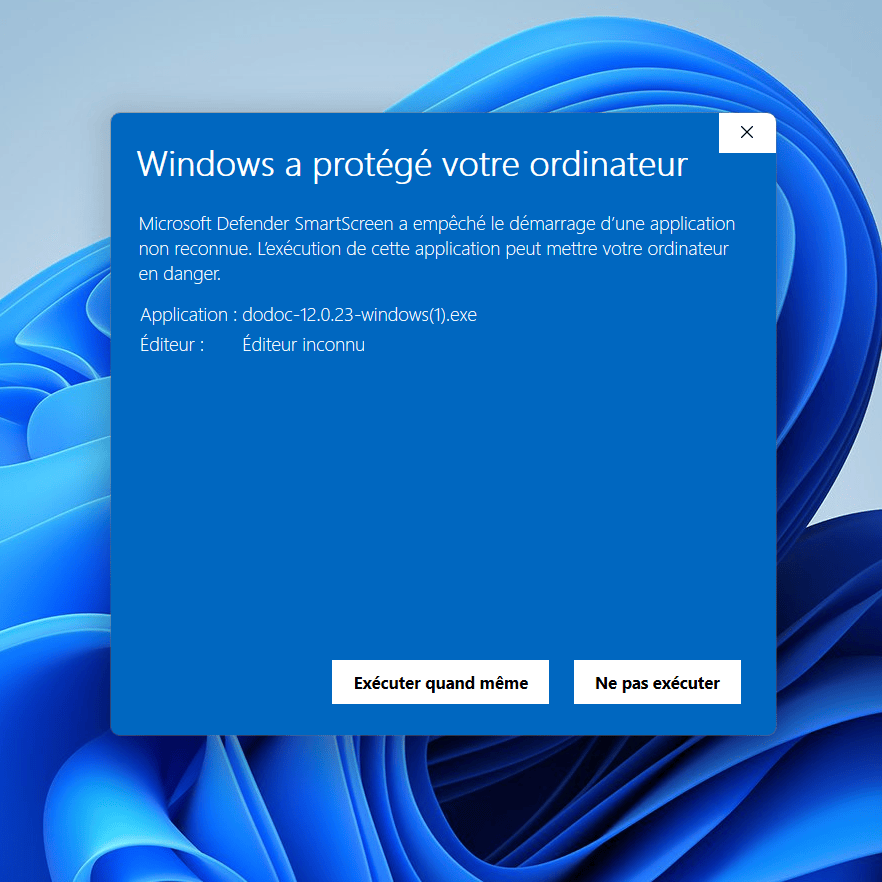
Complete the installation by clicking “Run anyway”.
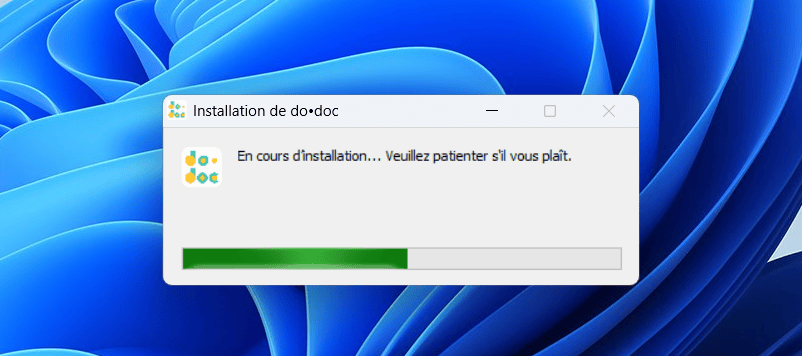
The application installs. Once done, do•doc launches automatically, ready to use.
Online server
To make do•doc available on the web (VPS, dedicated server…), follow the step-by-step tutorial on the Atelier des chercheurs forum (in French), kept up to date by the community.
Please note: this installation requires some technical work (terminal, server configuration, SSL certificate…). If you only want to put content online for people to view, simpler solutions exist — see the forum for alternatives.